How to Prevent Modal/Dialog/Sheet Dismissal using Swipe in SwiftUI
Learn how to stop users from closing modals or dialogs by swiping in SwiftUI with this comprehensive guide

Displaying Modals in SwiftUI Using Sheets
In modern iOS application design, presenting information temporarily without taking the user completely out of context is a fundamental pattern. To display a dialog, modal, or temporary entry form in SwiftUI, the most common and native method is to use a sheet. Sheets slide up from the bottom of the screen and offer a built-in, intuitive way for users to interact with temporary content.
By default, Apple designed these sheets to be extremely user-friendly. Users can seamlessly close or dismiss the modal by simply swiping down from the top edge of the sheet, as shown in the initial example below. This matches the standard iOS UX guidelines.
struct DialogView: View {
    var body: some View {
        NavigationView {
            VStack {
                Text("Lorem ipsum dolor sit amet, consectetur adipiscing elit. Donec non urna ut augue ultricies imperdiet sit amet at dui. Nulla sed egestas metus. In tincidunt maximus pretium")
                Spacer()
                    .navigationTitle("Dialog")
                    .navigationBarTitleDisplayMode(.inline)
            }
            .padding()
        }
    }
}

struct ContentView: View {
    @State private var showDialog: Bool = false
    var body: some View {
        VStack {
            Button("Show Dialog", action: {
                showDialog = true
            })
        }
        .sheet(isPresented: $showDialog){
            DialogView()
        }
        .padding()
    }
}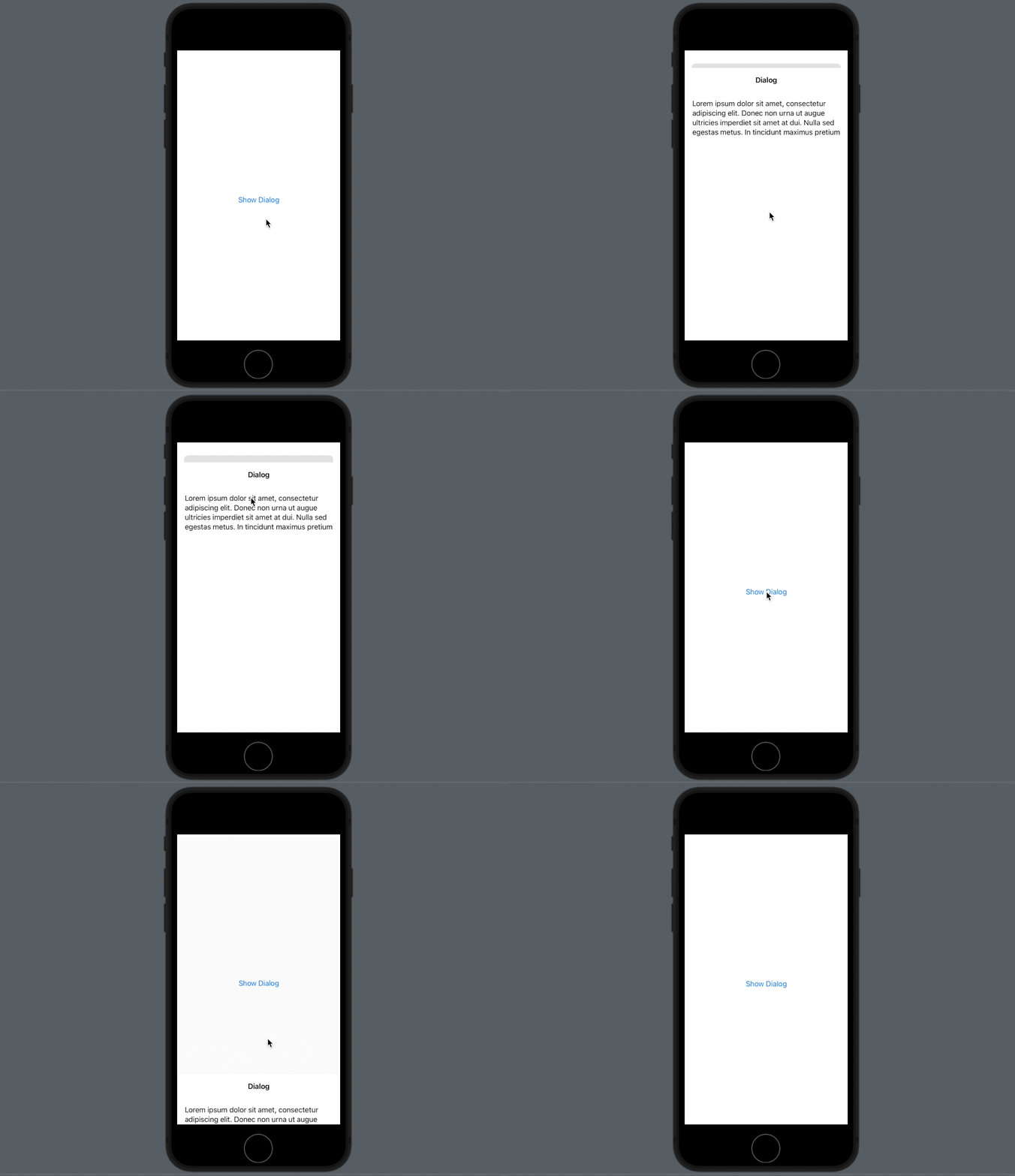
As seen in the example above, users can close the Dialog/Modal by just swiping it down. This is great for informational dialogs, but what happens when the sheet contains a complex data-entry form?
The UX Problem: Accidental Data Loss
While the swipe-to-dismiss gesture is convenient, it can be problematic and lead to a frustrating User Experience (UX) under certain circumstances. Imagine a user spending three minutes filling out a long registration form or writing a detailed note inside a sheet. If their finger slips and they accidentally swipe down, the sheet will immediately dismiss, and all their hard work and unsaved data will instantly vanish!
To protect the user from losing their data prematurely, developers often need to disable this default swipe behavior and force the user to make a conscious choice, such as tapping a "Save" or "Cancel" button.
Preventing Swipe Dismissal of Sheets
Fortunately, since iOS 15, SwiftUI provides an elegant and incredibly simple solution to prevent this swipe behavior. You can achieve it by adding a single view modifier:
.interactiveDismissDisabled(_ isDisabled: Bool = true)You attach this modifier directly to the top-level View inside the sheet, as demonstrated below.
struct DialogView: View {
    var body: some View {
        NavigationView {
            VStack {
                Text("Lorem ipsum dolor sit amet, consectetur adipiscing elit.")
                Spacer()
                    .navigationTitle("Dialog")
                    .navigationBarTitleDisplayMode(.inline)
            }
            .padding()
        }
        // This stops the swipe gesture from closing the sheet
        .interactiveDismissDisabled()
    }
}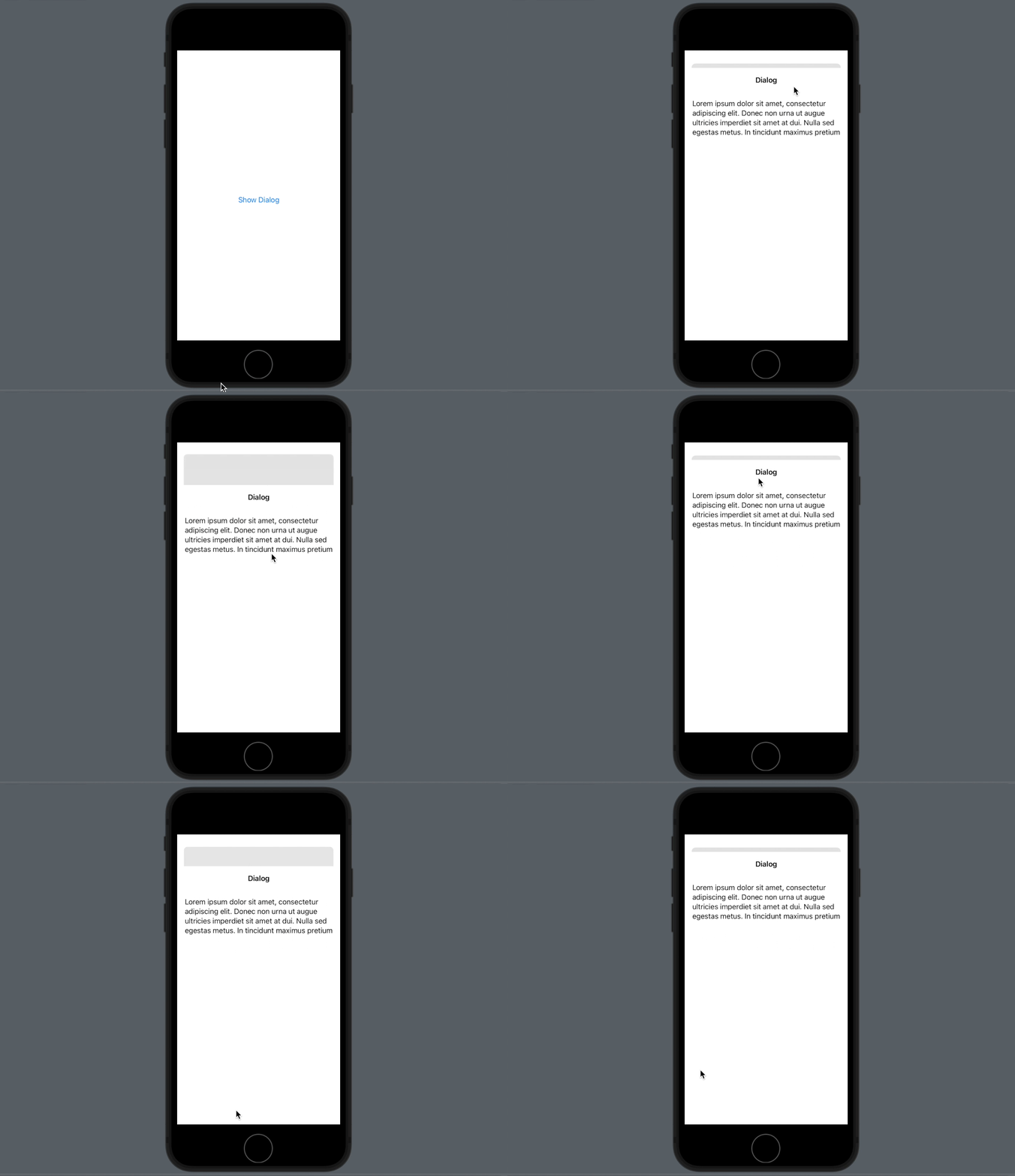
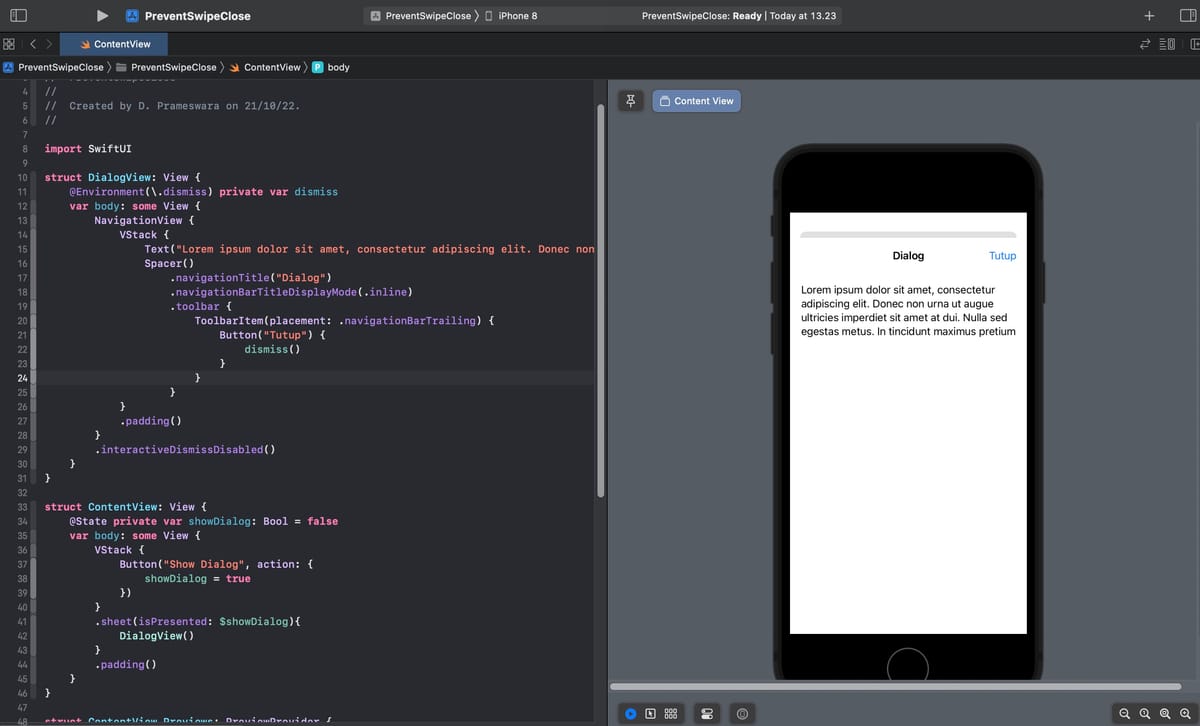
By adding the .interactiveDismissDisabled() modifier, swiping downwards will encounter "resistance." The sheet will bounce back up and will no longer close automatically, effectively saving your users from accidental data loss.
Adding a Manual Dismissal Button
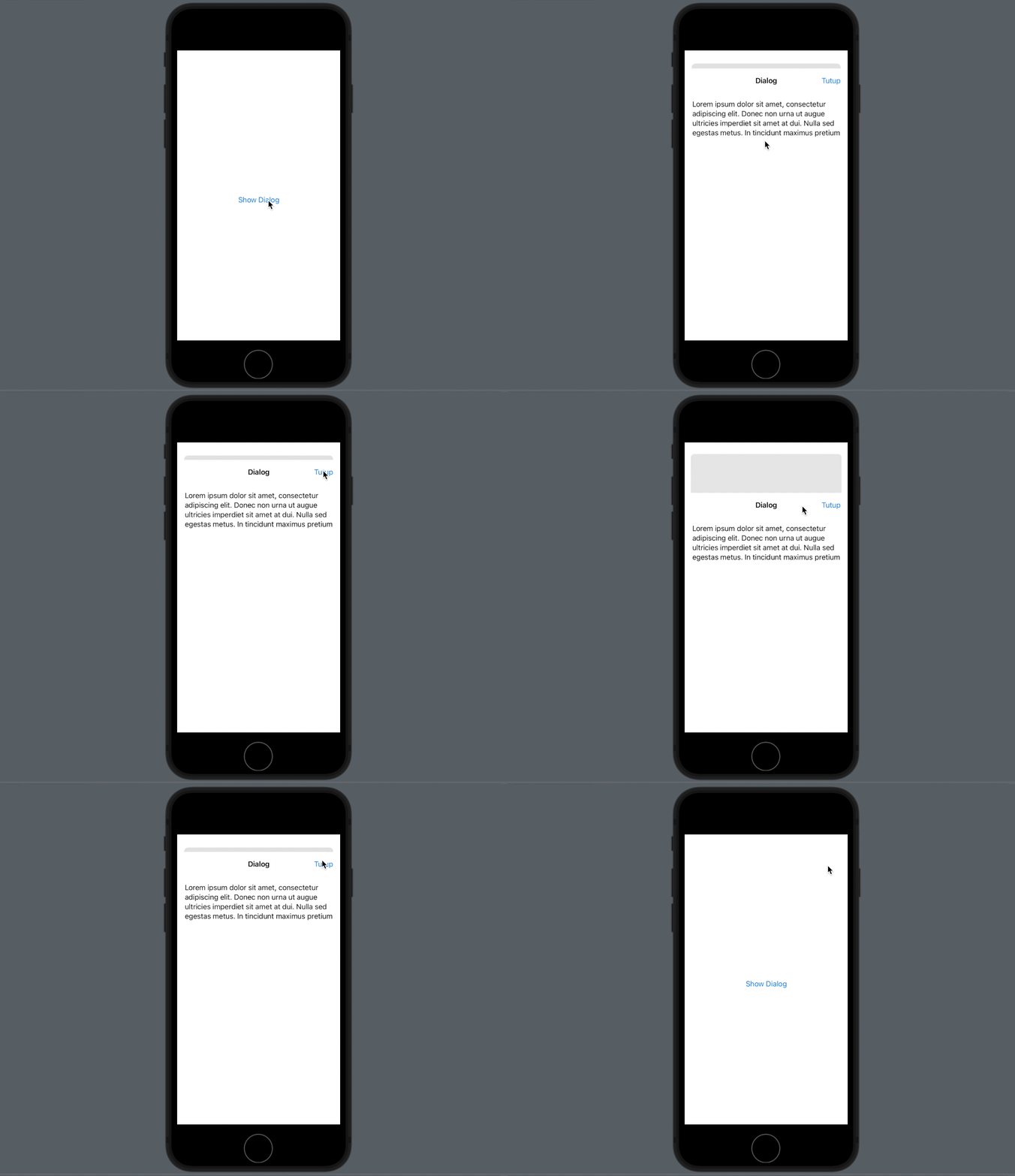
There is a catch! Since swiping no longer closes the modal or dialog, the user is now completely trapped on this screen. It is absolutely necessary to provide an alternative, manual way to close the modal. Usually, this is done by adding a specific "Close," "Cancel," or "Done" button in the navigation bar.
To programmatically dismiss the sheet when the button is tapped, you can use SwiftUI's native dismiss environment variable.
struct DialogView: View {
    // 1. Declare the dismiss environment variable
    @Environment(\.dismiss) private var dismiss

    var body: some View {
        NavigationView {
            VStack {
                Text("Lorem ipsum dolor sit amet, consectetur adipiscing elit.")
                Spacer()
                    .navigationTitle("Dialog")
                    .navigationBarTitleDisplayMode(.inline)
                    .toolbar {
                        ToolbarItem(placement: .navigationBarTrailing) {
                            // 2. Button that triggers the manual dismissal
                            Button("Tutup") {
                                dismiss()
                            }
                        }
                    }
            }
            .padding()
        }
        .interactiveDismissDisabled()
    }
}
Advanced: Conditional Dismissal
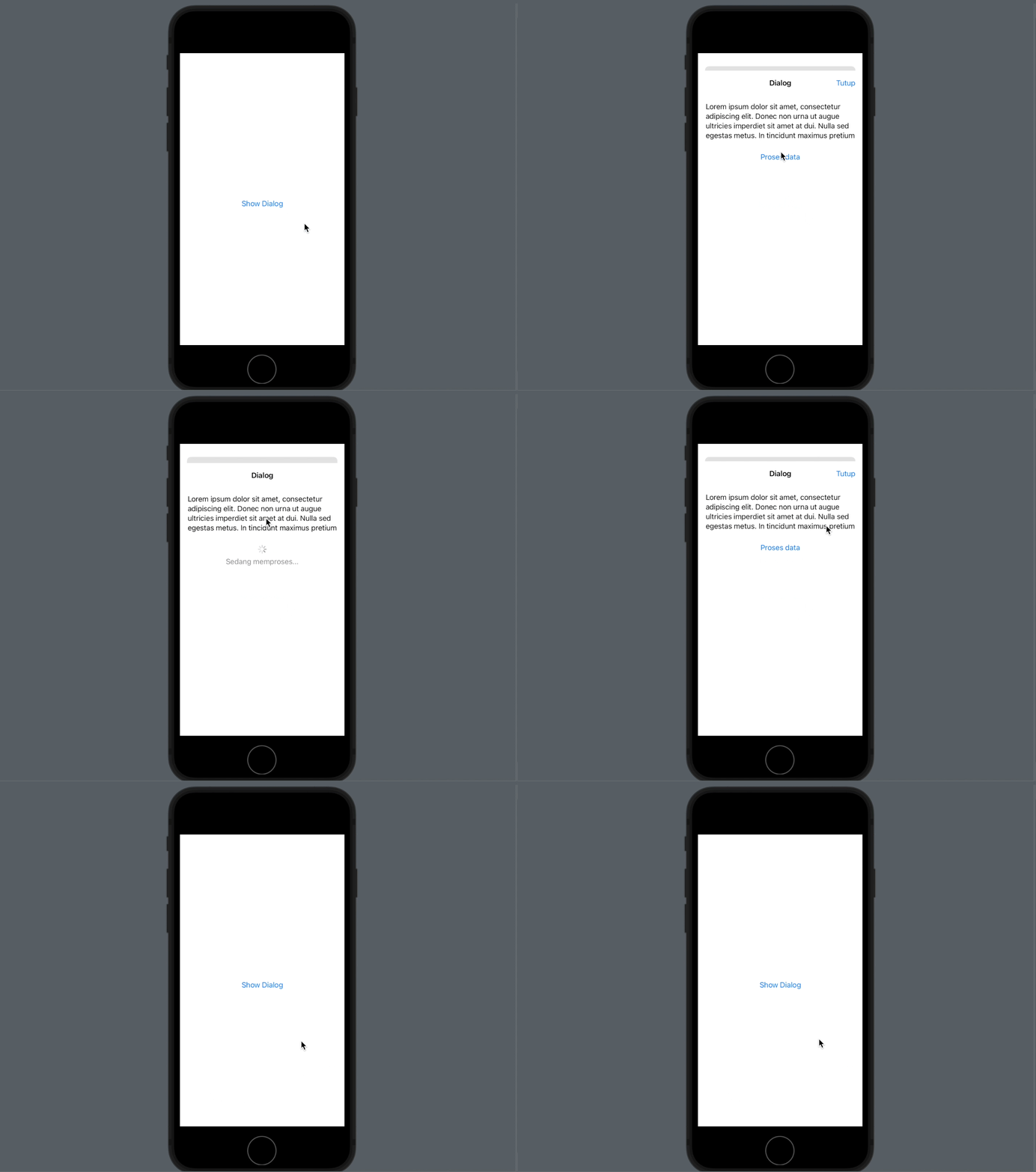
For more advanced UX patterns, you can enable or disable the swipe dismissal dynamically based on specific state conditions. For example, you might want to disable swiping only when a background network request is currently processing, and re-enable it once the data has successfully finished uploading.
You can achieve this by passing a Boolean state variable to the modifier: .interactiveDismissDisabled(isLoading).
struct DialogView: View {
    @Environment(\.dismiss) private var dismiss
    @State private var isLoading: Bool = false

    var body: some View {
        NavigationView {
            VStack {
                if isLoading {
                    ProgressView("Sedang memproses...")
                        .padding()
                } else {
                    Button("Proses data"){
                        isLoading = true
                        // Simulate a 3-second network request
                        DispatchQueue.main.asyncAfter(deadline: .now()+3){
                            isLoading = false
                        }
                    }
                    .padding()
                }
                Spacer()
                    .navigationTitle("Dialog")
                    .navigationBarTitleDisplayMode(.inline)
                    .toolbar {
                        ToolbarItem(placement: .navigationBarTrailing) {
                            // Only show Close button if not loading
                            if !isLoading {
                                Button("Tutup") {
                                    dismiss()
                                }
                            }
                        }
                    }
            }
            .padding()
        }
        // Conditionally disable swipe ONLY when isLoading is true
        .interactiveDismissDisabled(isLoading)
    }
}
Conclusion
Understanding how and when to control sheet dismissal is a hallmark of sophisticated iOS application design. By selectively using interactiveDismissDisabled, you balance convenience with data-safety, preventing user frustration while maintaining standard Apple design principles.
That concludes these tips and tricks. Enjoy experimenting with conditional sheet behaviors, and we hope you find this UX information useful for your next SwiftUI project!