Swift Tricks: Accessing App Version Information
Learn how to obtain your app's version and build number using Swift.

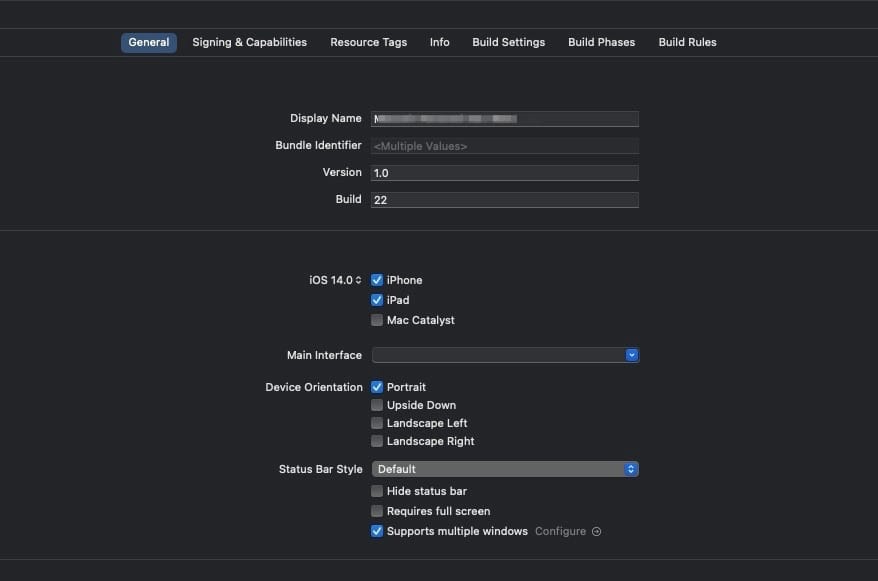
If you're developing an application for iOS or macOS, chances are you're using Xcode as your primary integrated development environment. As your application grows and goes through multiple iterations, keeping track of its current version becomes crucial for both users and the development team. Sometimes, you might want to explicitly display the app's version and build number on a particular screen, such as a "Settings" or "About" page, based on the specific configurations you've set within Xcode.
Why is displaying the app version so important? For developers and QA (Quality Assurance) testers, having the exact version and build number visible makes it much easier to track down bugs and verify that the correct iteration of the app is being tested. For end-users, it provides transparency and helps customer support teams assist them more effectively by knowing exactly which software version they are running. So, how can you elegantly retrieve and display this information using Swift?
Understanding the Bundle Information Dictionary
In a nutshell, the app's version information that you configure in your Xcode project's target settings is stored internally within the application's bundle dictionary. Specifically, the data is tied to two key identifiers:
CFBundleShortVersionString: This key represents the user-facing "Version" of your app (e.g., "1.0.3" or "2.1"). It is meant to be a public-facing string.CFBundleVersion: This key represents the internal "Build" number (e.g., "4" or "20231102"). It is typically used internally to differentiate between multiple compilations of the same public-facing release version.
To retrieve this crucial information, you simply need to access and read it from the Bundle.main.infoDictionary. Let's look at how to construct a reusable function to accomplish this.
Retrieving the Version Using a Custom Function
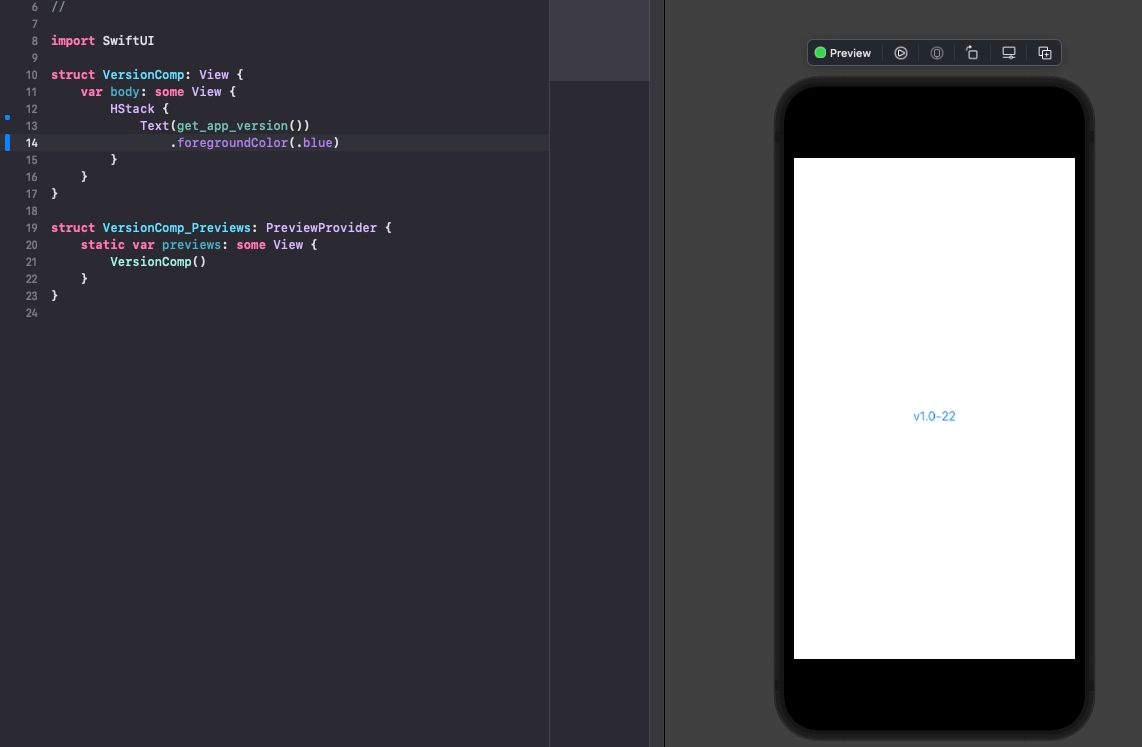
Creating a dedicated function to fetch the version string is a great way to keep your codebase clean and reusable across multiple View Controllers or SwiftUI Views.
func get_app_version() -> String {
    // Attempt to access the infoDictionary safely
    guard let dictionary = Bundle.main.infoDictionary,
          let version: String = dictionary["CFBundleShortVersionString"] as? String,
          let build: String = dictionary["CFBundleVersion"] as? String else {
        // Return a fallback string if the keys are missing
        return "Unknown Version"
    }
    // Format the output string
    return "v\(version) (\(build))"
}
In the code snippet above, we created a function called get_app_version() to encapsulate the logic. It's essential to note that Bundle.main.infoDictionary is an Optional value, meaning it can technically be nil under certain unpredictable circumstances (though rare in a standard app bundle). The values retrieved using the string keys are also Optionals of type Any.
Therefore, we must use the guard let statement to perform safe unwrapping and type casting (as? String). This guarantees that our app will not crash if the values are missing, returning a fallback string instead.
Using the Version Directly in a SwiftUI View
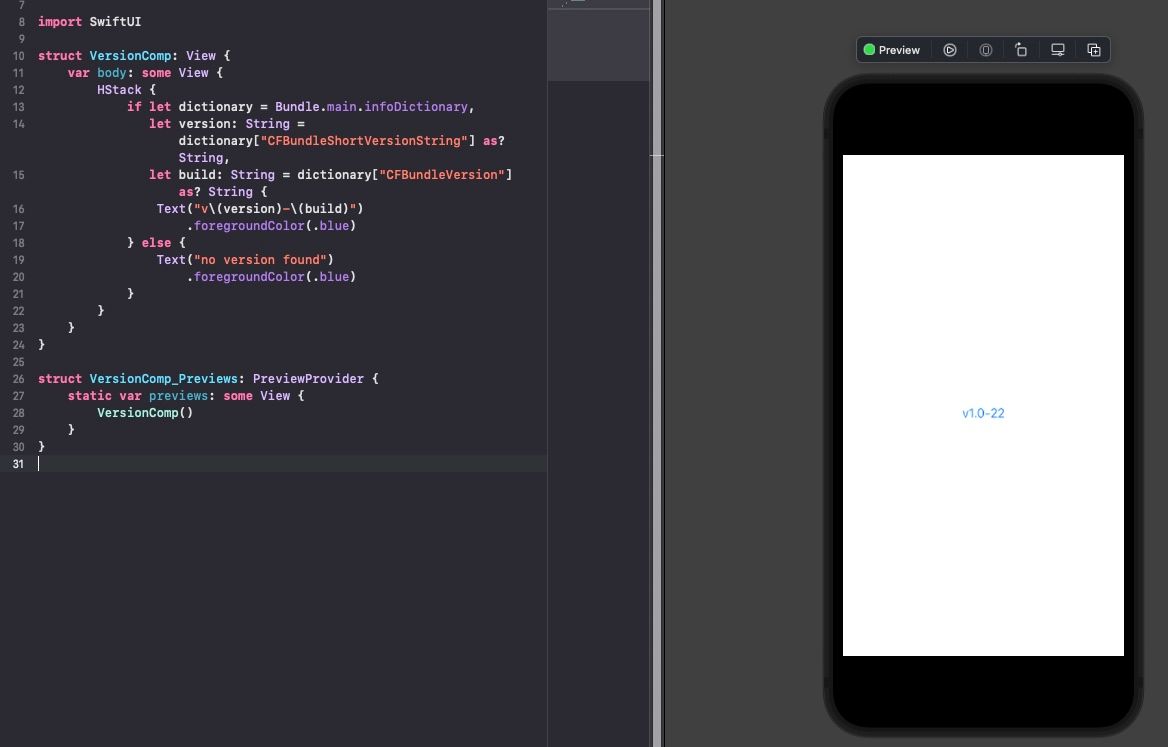
If you prefer a more declarative approach, or if you only need to display the version on a single, isolated screen, you can write the extraction logic directly inside your SwiftUI View without relying on an external function.
import SwiftUI

struct VersionComp: View {
    var body: some View {
        HStack {
            // Unwrapping the dictionary and values inline using if let
            if let dictionary = Bundle.main.infoDictionary,
               let version: String = dictionary["CFBundleShortVersionString"] as? String,
               let build: String = dictionary["CFBundleVersion"] as? String {

                Text("v\(version) (\(build))")
                    .foregroundColor(.secondary)
                    .font(.footnote)
            } else {
                Text("Version info not found")
                    .foregroundColor(.red)
                    .font(.footnote)
            }
        }
    }
}

struct VersionComp_Previews: PreviewProvider {
    static var previews: some View {
        VersionComp()
    }
}
Conclusion
Whether you choose to encapsulate the logic within a utility function or embed it directly into a SwiftUI view using if let, accessing the Bundle.main.infoDictionary is the standard, reliable way to retrieve your application's current version and build number.
Implementing this small detail significantly enhances the professional feel of your application and can be a lifesaver during the debugging and QA phases of development.
That's all for this quick tip and trick. Give it a try, integrate it into your "About Page," and hopefully, this little snippet proves to be valuable for your Swift development journey!